While many disk performance tools like fio, orion, and iometer provide in-depth analysis, the dd and hdparm commands stand out for their simplicity and universal accessibility on Linux systems. In this article, I’ll demonstrate how to use these tools for quick and effective disk performance evaluations, drawing from real-world scenarios.
Why dd?
I was once asked to investigate a database slowdown. Before diving deep, I ran a basic sanity check on the disks using dd. The results were striking, as shown in the screenshot below:
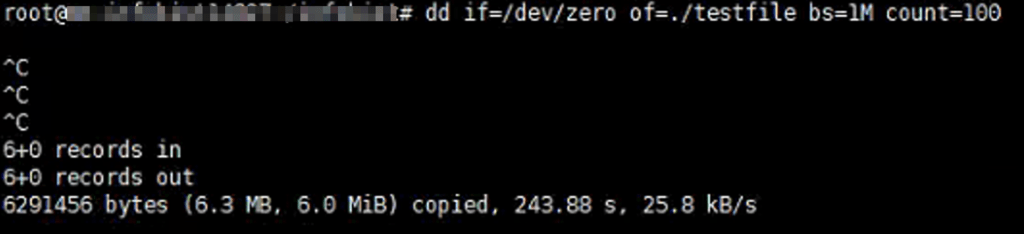
The read speed of the disks plummeted to a mere 25.8 kB/s. It became evident that the bottleneck wasn’t the database itself but rather the malfunctioning disks. This episode highlighted the power of dd for basic, yet effective assessments.
This experience underscores dd’s value for rapid assessments. Its key advantages include:
- Simplicity: Easy to use with minimal parameters.
- Availability: Pre-installed on Linux systems.
- Practicality: While not highly detailed or 100% accurate, it’s sufficient for initial assessments.
Measuring Write Speed
To measure the write speed, use the following command to write 1GB of data to disk in a single pass:
$ dd if=/dev/zero of=test.img bs=1G count=1 conv=fdatasync
Explanation:
if=/dev/zero: Input file, generates a stream of null bytes.of=test.img: Output file to write the data.bs=1G: Block size of 1 gigabyte.count=1: Write a single block.conv=fdatasync: Ensures data is physically written to disk, not cached.
Caution: dd will overwrite existing data on output file.
Sample outputs:
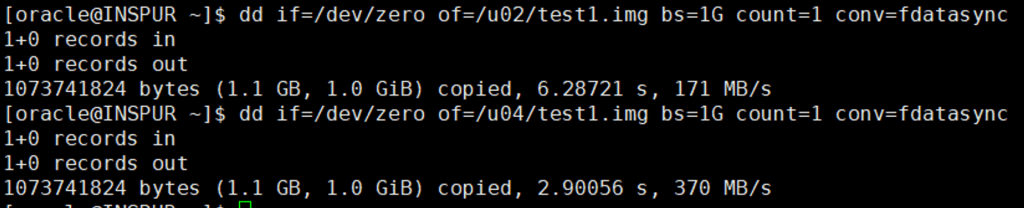
Note: “/u02” locates on a mechanical disk, while “/u04” locates on a solid-state disk
We can see that the write speed of solid-state disk is roughly twice that of the mechanical disk.
Measuring Read Speed
For an accurate read speed measurement, clear system caches before testing with the following command:
# sync && sudo echo 3 > /proc/sys/vm/drop_caches
Then, conduct the read test by retrieving 1GB of data from the previous file in one pass:
$ dd if=/u02/test1.img of=/dev/null bs=1G count=1
Here, “/dev/null” serves as a virtual null device used for discarding input.
Sample outputs:
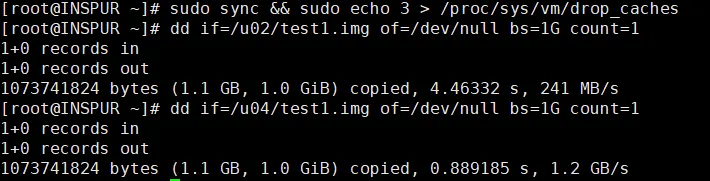
Here, the read speed of the solid-state disk is about five times faster than that of the mechanical disk.
High IOPS Test
To test for high input/output operations per second (IOPS), use smaller block sizes:
dd if=/dev/zero of=test.img bs=8K count=128K conv=fdatasync
Sample result:
131072+0 records in
131072+0 records out
1073741824 bytes (1.1 GB) copied, 5.71024 s, 188 MB/s
Measuring with hdparm
Another handy tool for evaluating disk performance is the hdparm command. It operates at the block level, offering faster test results compared to file system-level tests.
Example usage:
hdparm -Tt /dev/sdb
The ‘t’ option runs direct (buffered) disk reads test, the ‘T’ option performs cache reads test. Note that hdparm command can’t do writes test.
Sample outputs:
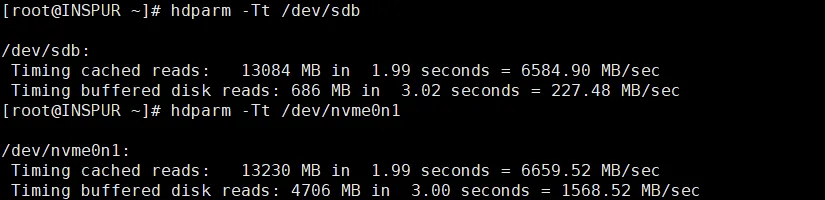
The cache read speed of solid state disk and mechanical disk are approximately the same, while the disk read speed of solid state disk is 6 times faster than that of mechanical disk.
Conclusion
While not exhaustive, dd and hdparm can be valuable tools in seeking a quick and easily accessible method to evaluate disk performance. Remember their limitations and consider more comprehensive tools for in-depth analysis when needed.


 Yuan Yao, An Oracle ACE's Blog
Leave a comment