MySQL 26.7 is the first MySQL release series to use calendar versioning. The format is YY.M; therefore, 26.7 identifies a release from July 2026. By the time you read this article, Oracle has probably released a newer MySQL version. Although the RPM filenames, package versions, and displayed command output will differ, the installation process described here is substantially the same. This section installs the MySQL Community Server 26.7.0 RPM bundle on Red Hat Enterprise Linux 9 (x86_64). The same procedure applies to compatible Oracle Linux 9 systems.
Download the RPM Bundle
Download the RPM bundle for Red Hat Enterprise Linux 9 (x86_64) from the MySQL Community Downloads page, as shown in the following figure:
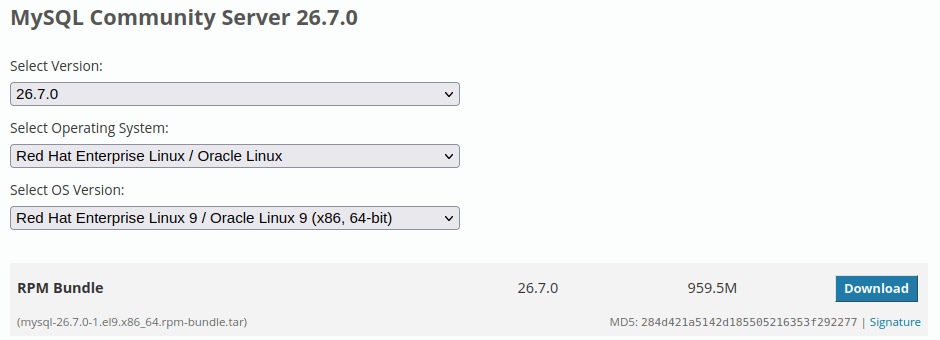
The following example uses wget to retrieve the 26.7.0 bundle:
[root@rhel9 ~]# wget https://dev.mysql.com/get/Downloads/MySQL-26.7/mysql-26.7.0-1.el9.x86_64.rpm-bundle.tar--2026-08-19 13:22:10-- https://dev.mysql.com/get/Downloads/MySQL-26.7/mysql-26.7.0-1.el9.x86_64.rpm-bundle.tarResolving dev.mysql.com (dev.mysql.com)...Connecting to dev.mysql.com (dev.mysql.com)|...|:443... connected.HTTP request sent, awaiting response... 302 FoundLocation: https://cdn.mysql.com/Downloads/MySQL-26.7/mysql-26.7.0-1.el9.x86_64.rpm-bundle.tar [following]...mysql-26.7.0-1.el9.x86_64.rpm-bundle.tar 100%[==================================================>] 959.51M2026-08-19 13:22:10 (172 KB/s) - ‘mysql-26.7.0-1.el9.x86_64.rpm-bundle.tar’ saved [1006120960/1006120960]
The downloaded filename follows this convention:
mysql-<version>-<release>.<distribution>.<architecture>.rpm-bundle.tar
For mysql-26.7.0-1.el9.x86_64.rpm-bundle.tar:
mysqlidentifies the product.26.7.0is the MySQL server version.1is the RPM package release.el9identifies the Enterprise Linux 9 build.x86_64identifies the 64-bit Intel and AMD architecture.rpm-bundle.tarindicates that the archive contains multiple RPM packages.
Confirm that the download completed successfully before extracting it:
[root@rhel9 ~]# ls -lh mysql-26.7.0-1.el9.x86_64.rpm-bundle.tar-rw-r--r--. 1 root root 960M Jul 11 19:35 mysql-26.7.0-1.el9.x86_64.rpm-bundle.tar
Install the RPM Packages
Extract the RPM bundle into an empty working directory:
[root@rhel9 ~]# tar -xvf mysql-26.7.0-1.el9.x86_64.rpm-bundle.tarmysql-community-client-26.7.0-1.el9.x86_64.rpmmysql-community-client-plugins-26.7.0-1.el9.x86_64.rpmmysql-community-common-26.7.0-1.el9.x86_64.rpmmysql-community-icu-data-files-26.7.0-1.el9.x86_64.rpmmysql-community-libs-26.7.0-1.el9.x86_64.rpmmysql-community-server-26.7.0-1.el9.x86_64.rpm...mysql-community-test-debuginfo-26.7.0-1.el9.x86_64.rpm
A standard installation can be performed with the following command:
[root@rhel9 ~]# dnf install mysql-community-{server,client,client-plugins,icu-data-files,common,libs}-26.7.0-1.el9.x86_64.rpm
Note : Do not install the
-debuginfo,-debug, or-testpackages on a normal production database server. They are intended for troubleshooting, development, or MySQL test execution and consume additional disk space.
Configure a Custom Data Directory
The first start of mysqld initializes the data directory. If the database files must reside outside the default /var/lib/mysqldirectory, configure the target location before starting the service. Changing datadir after initialization requires a controlled data-directory migration.
The following example places the data directory and Unix socket under /u01/mysql:
[mysqld]datadir=/u01/mysqlsocket=/u01/mysql/mysql.socklog-error=/var/log/mysqld.logpid-file=/var/run/mysqld/mysqld.pid
[client]
socket=/u01/mysql/mysql.sock
Configure SELinux for the Custom Directory
On Red Hat Enterprise Linux 9, SELinux commonly operates in enforcing mode. The default MySQL data directory has the mysqld_db_t SELinux type, which authorizes the MySQL server to access database files. A newly created directory normally has the generic default_t type and can prevent mysqld from starting or accessing its data files.
Check the SELinux mode and compare the directory labels:
[root@rhel9 ~]# getenforceEnforcing[root@rhel9 ~]# ls -Zd /u01/mysqlunconfined_u:object_r:default_t:s0 /u01/mysql[root@rhel9 ~]# ls -Zd /var/lib/mysqlsystem_u:object_r:mysqld_db_t:s0 /var/lib/mysql
In an SELinux context, the third field is the type. Here, /u01/mysql has default_t, whereas the default MySQL data directory has mysqld_db_t. Assign the MySQL database type to the custom directory and all files created below it:
[root@rhel9 ~]# semanage fcontext -a -t mysqld_db_t '/u01/mysql(/.*)?'[root@rhel9 ~]# restorecon -Rv /u01/mysqlRelabeled /u01/mysql from unconfined_u:object_r:default_t:s0 to unconfined_u:object_r:mysqld_db_t:s0...[root@rhel9 ~]# ls -Zd /u01/mysqlunconfined_u:object_r:mysqld_db_t:s0 /u01/mysql
The semanage fcontext command records a persistent file-context rule. The restorecon command immediately applies that rule to the existing directory. Future relabeling operations therefore retain the required mysqld_db_t type.
Note : Do not disable SELinux merely to start MySQL from a custom directory. Assigning the appropriate SELinux file context preserves the protection provided by SELinux and is the supported administrative approach.
Start and Initialize MySQL
Now, we can start the mysqld service:
[root@rhel9 ~]# systemctl start mysqld[root@rhel9 ~]# systemctl status mysqld● mysqld.service - MySQL Server Loaded: loaded (/usr/lib/systemd/system/mysqld.service; enabled; vendor preset: disabled) Active: active (running) since Wed 2026-08-19 16:21:45 CST; 33min ago Docs: man:mysqld(8) http://dev.mysql.com/doc/refman/en/using-systemd.html Process: 2308978 ExecStartPre=/usr/bin/mysqld_pre_systemd (code=exited, status=0/SUCCESS) Main PID: 2309005 (mysqld) Status: "Server is operational" Tasks: 36 (limit: 12333) Memory: 449.8M CPU: 7.172s CGroup: /system.slice/mysqld.service └─2309005 /usr/sbin/mysqld
During its initial start, MySQL initializes the data directory and writes a temporary password for root@localhost to the error log. Retrieve the password with the following command:
[root@rhel9 ~]# grep 'temporary password' /var/log/mysqld.log2026-08-19T08:08:51.780848Z 6 [Note] [MY-010454] [Server] A temporary password is generated for root@localhost: j<4kTei!jPui
Set a Simple Password in a Test Environment
This is a testing environment, we are going to set a simple password for the database.
Connect as root and enter the temporary password when prompted:
[root@rhel9 ~]# mysql -uroot -pEnter password:Welcome to the MySQL monitor. Commands end with ; or \g.Your MySQL connection id is 11Server version: 26.7.0 MySQL Community Server - GPL
MySQL requires the temporary password to be changed before most statements can be executed. Consequently, the initial attempt to assign the simple password fails because the validate_password component applies its default complexity policy:
mysql> ALTER USER 'root'@'localhost' IDENTIFIED BY 'yuanyao';ERROR 1819 (HY000): Your password does not satisfy the current policy requirements
The password remains expired after this failure. MySQL therefore rejects other statements, including an attempt to inspect the password-validation settings:
mysql> SHOW VARIABLES LIKE 'validate_password%';ERROR 1820 (HY000): You must reset your password using ALTER USER statement before executing this statement.
First assign an interim password that satisfies the default policy. The following password has at least eight characters and includes uppercase, lowercase, numeric, and special characters:
mysql> ALTER USER 'root'@'localhost' IDENTIFIED BY 'Yuanyao888!';Query OK, 0 rows affected (0.007 sec)
The password is now valid, so the validate_password component can be removed. Removing the component disables the password policy and removes its associated validate_password system variables:
mysql> UNINSTALL COMPONENT 'file://component_validate_password';Query OK, 0 rows affected (0.011 sec)
Now set the simple password for the testing environment:
mysql> ALTER USER 'root'@'localhost' IDENTIFIED BY 'yuanyao';Query OK, 0 rows affected (0.007 sec)mysql> \qBye
Note : Do not remove the
validate_passwordcomponent or set a simple password on a production server. Production administrative accounts must use strong, unique passwords that comply with the organization’s credential policy.
Verify the Installation
Reconnect using the simple test password. The following example supplies yuanyao on the command line to demonstrate a successful connection; MySQL therefore displays a security warning.
[root@rhel9 ~]# mysql -uroot -pyuanyaomysql: [Warning] Using a password on the command line interface can be insecure.Welcome to the MySQL monitor. Commands end with ; or \g.Your MySQL connection id is 12Server version: 26.7.0 MySQL Community Server - GPLCopyright (c) 2000, 2026, Oracle and/or its affiliates.Oracle is a registered trademark of Oracle Corporation and/or itsaffiliates. Other names may be trademarks of their respectiveowners.Type 'help;' or '\h' for help. Type '\c' to clear the current input statement.
Verify the server version and configured data directory:
mysql> SELECT VERSION();+-----------+| VERSION() |+-----------+| 26.7.0 |+-----------+1 row in set (0.00 sec)mysql> SHOW VARIABLES LIKE 'datadir';+---------------+-------------+| Variable_name | Value |+---------------+-------------+| datadir | /u01/mysql/ |+---------------+-------------+1 row in set (0.00 sec)
The output confirms that the MySQL server is running and that it initialized the intended data directory.
MySQL 26.7 is now installed, initialized, and ready for use in the test environment. The server is running from the configured /u01/mysql data directory, and the root account can connect locally.


Leave a Reply